

BE THE FIRST TO GET PRODUCT UPDATES
Get notified about new features & special offers......


See how strength and testing results are changing, and use individual insights to guide training.
Progress is easier to explain when athletes can see it for themselves. Output’s latest updates give coaches and athletes a clearer view of strength progression, testing results and the loads that match an individual’s velocity targets.
In Capture, the new Performance tab in Exercise History brings those insights together. In Hub, coaches can review automatically generated load-velocity profiles and write clearer session instructions for athletes to follow.
For supported velocity-based training (VBT) exercises, the Performance tab shows an estimated one-repetition maximum (1RM) range and how it changes over time.
The estimate comes from the athlete’s load-velocity profile (LVP): the relationship between the weight they lift and the speed they move it. As qualifying sensor-recorded data builds that profile, it gives you another way to review strength development alongside completed lifts and session feedback.
For example, you can review a back squat estimate with an athlete to show how their strength is developing across their recorded training, without relying only on their heaviest completed lift.
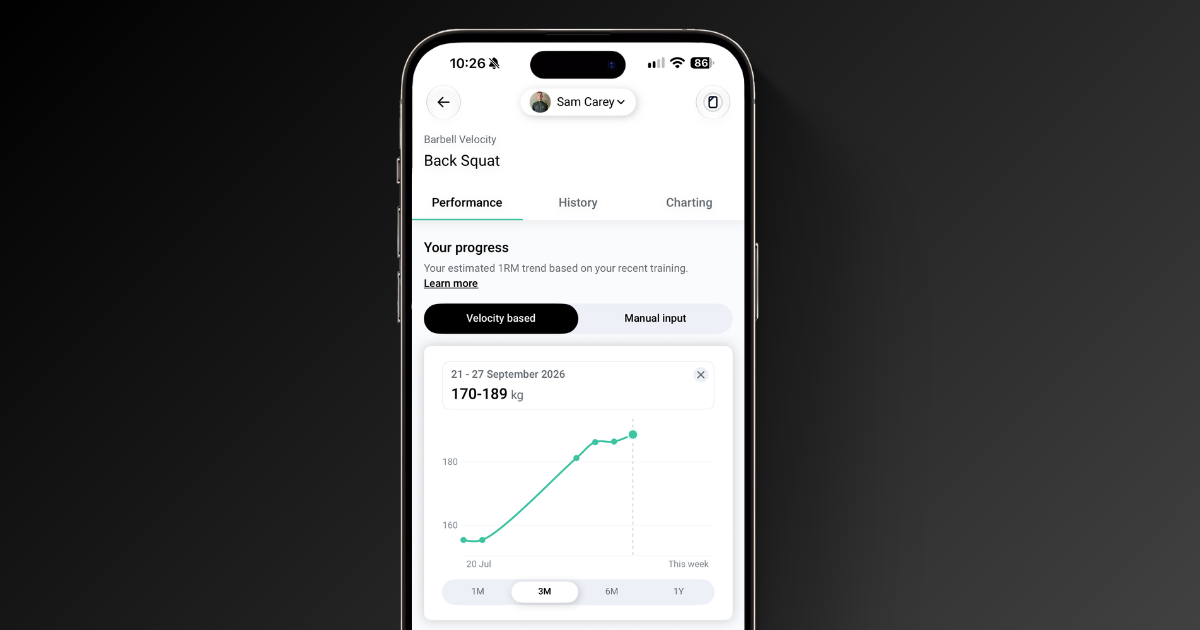
These measures serve different purposes. The estimated range helps you review development; it does not automatically replace the manually set 1RM or change the athlete’s program.
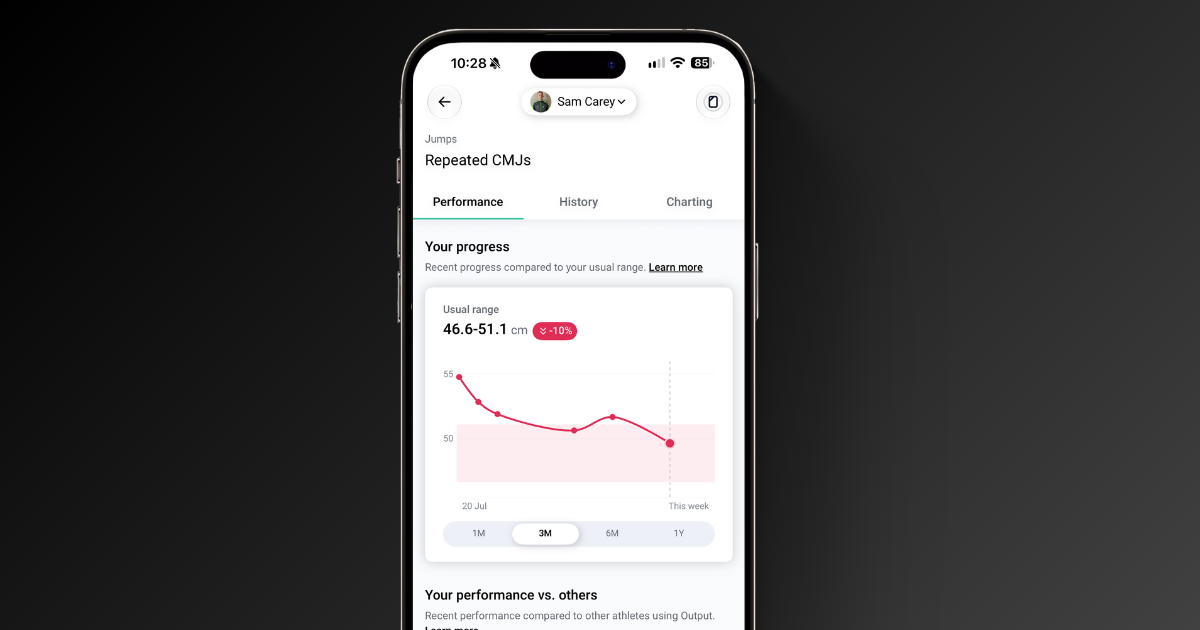
A jump height or range-of-motion result becomes more useful when you can see how it compares with the athlete’s previous results. For supported tests, the Performance tab brings personal bests, recent sets and performance context into one view.
The chart plots the athlete’s best result for each recorded day against a shaded band showing their usual range. The baseline trend compares their latest baseline with the one closest to 42 days earlier, showing whether it is improving, maintaining or declining.
For a countermovement jump, that helps you explain whether a result sits within the athlete’s usual range and how their performance has been trending. Use that context alongside consistent testing conditions, recent workload and your knowledge of the athlete.
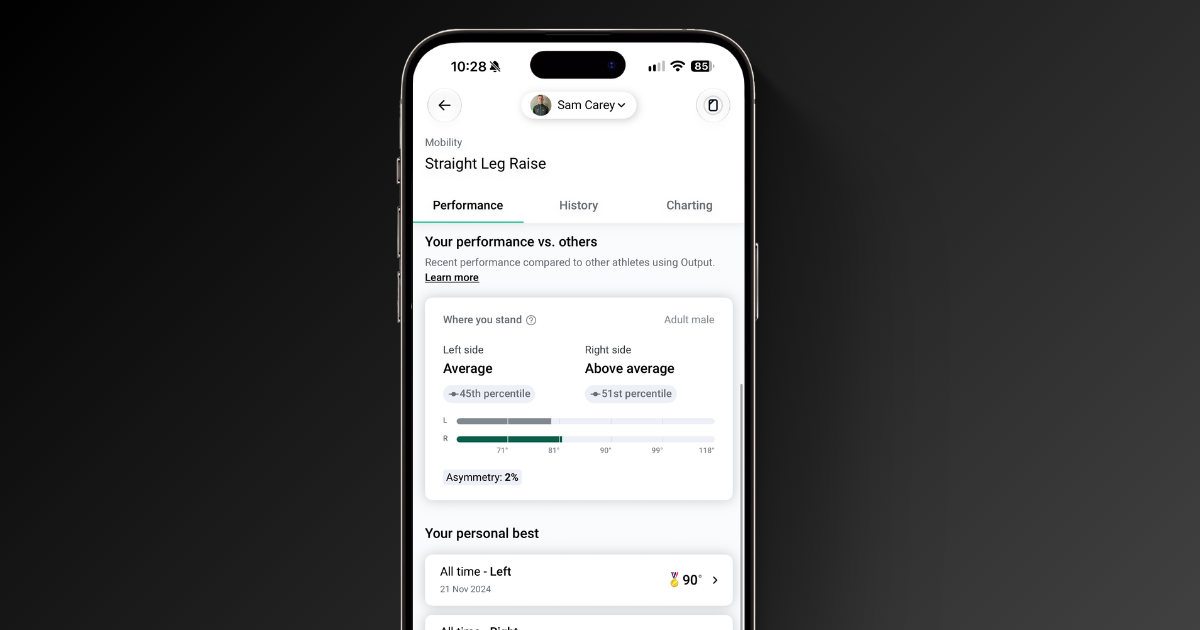
Where reference data is available, “Where you stand” shows how the athlete compares with other Output athletes in the relevant sex and age group. This gives you a wider reference point alongside their personal trend.
For supported left and right tests, you can also review results for each side and the asymmetry between them. Normative comparisons appear only where the relevant reference data is available.
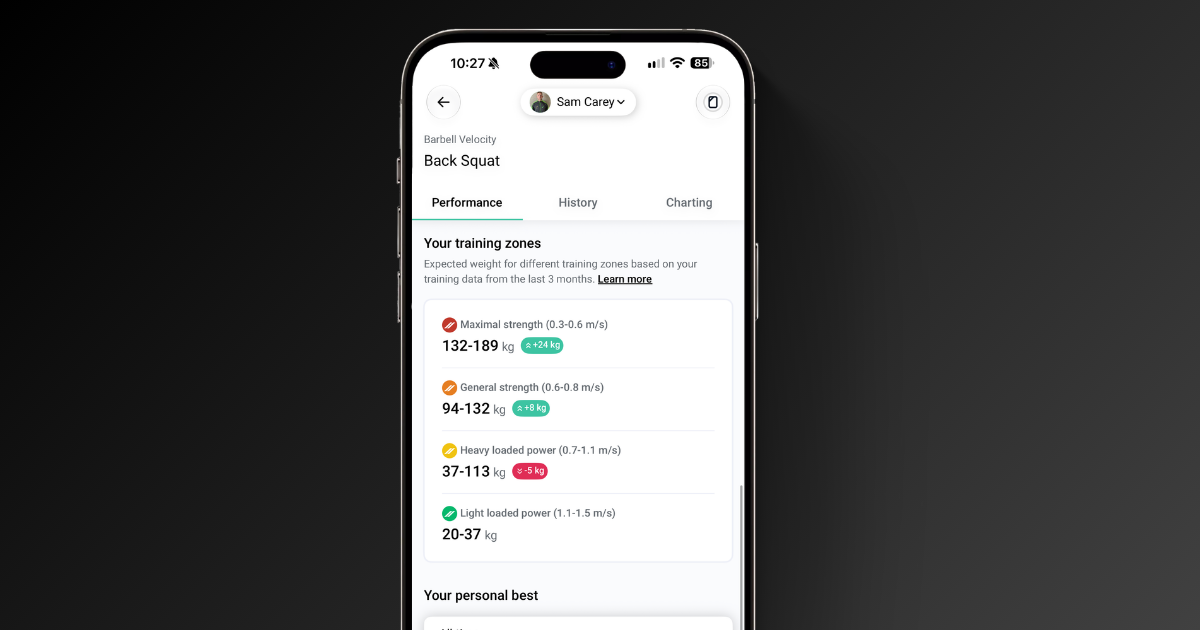
A velocity zone sets the movement-speed target for a lift. The next step is choosing an appropriate starting load for that athlete.
On Capture’s Set Up screen, athletes with an LVP can see a personalised recommended weight range for their selected velocity zone. If the coach has already prescribed a zone, that zone is selected when the athlete opens the exercise. The guidance matches the corresponding training-zone insight in the Performance view.
For a back squat session, the athlete can see a profile-based starting range before the first set. You can then use measured velocity and coaching judgement to adjust the load during training.
Athletes without an LVP continue to see generic percentage-of-1RM guidance. A profile-based recommendation reflects the recorded data behind that profile, so use the session’s measured feedback to check the load.
In the athlete’s Profiling view, coaches can select available automatically generated LVPs for supported exercises. This makes the athlete’s load-velocity relationship easier to review within Hub alongside your coaching work.
Exercise instructions, circuit instructions and workout notes support bold, italics, numbered and bulleted lists, and links. Formatting added in Hub is displayed in Capture, helping athletes pick out a key cue or follow a circuit’s sequence.
In Capture, open Exercise History for a supported exercise and select the Performance tab. Start with a VBT exercise to review strength and training zones, or a supported test to explore the athlete’s usual range and available comparisons.
In Hub, open an athlete’s profile and select Profiling to review available automated LVPs.
Available insights depend on the exercise, your access and the athlete’s recorded data. A baseline or LVP may still be building until enough qualifying data is available.
Get a demo tailored to your athletes, your facility and your coaching goals. Explore the tests and insights most relevant to your work, and get your questions answered by our team.


Monthly performance insights, product updates, and sports science — straight to your inbox.
No spam, ever. Unsubscribe anytime.
No thanks, I'm not interested